
In the age of remote work, your presence on Microsoft Teams is your new handshake. Whether you're closing a deal, leading a webinar, or interviewing for a job, the way you present yourself on camera determines how you are perceived.
But there is a major flaw in video conferencing design: The Eye Contact Gap. When you look at your notes on the screen, you are looking away from the camera. When you look at the camera, you can't see your notes.
The Solution: Center Your Script
By using a specialized teleprompter positioned directly under your webcam, you can read your script while maintaining the illusion of eye contact. This guide covers everything you need to know.
Why Eye Contact Matters in Virtual Sales
Research shows that direct eye contact increases trust and retention. in a physical boardroom, you naturally look at people while speaking. But on Teams, the geometry works against you. Most participants look at the video grid (bottom of the screen) while their webcam is at the top.
This creates a disconnect. You appear to be looking down or distracted. For high-stakes presentations, this subtle body language cue can be the difference between a "Yes" and a "Maybe."
Step-by-Step Setup Guide
1. Launch Online Prompter
First, open Online Prompter in your browser (Chrome, Edge, or Safari). Our tool is designed to work distraction-free without needing to install heavy software.
2. Prepare Your Script
Paste your presentation notes into the editor. Use the formatting tools to highlight key phrases that you want to emphasize. We recommend using short paragraphs and bullet points for easier readability during a live call.
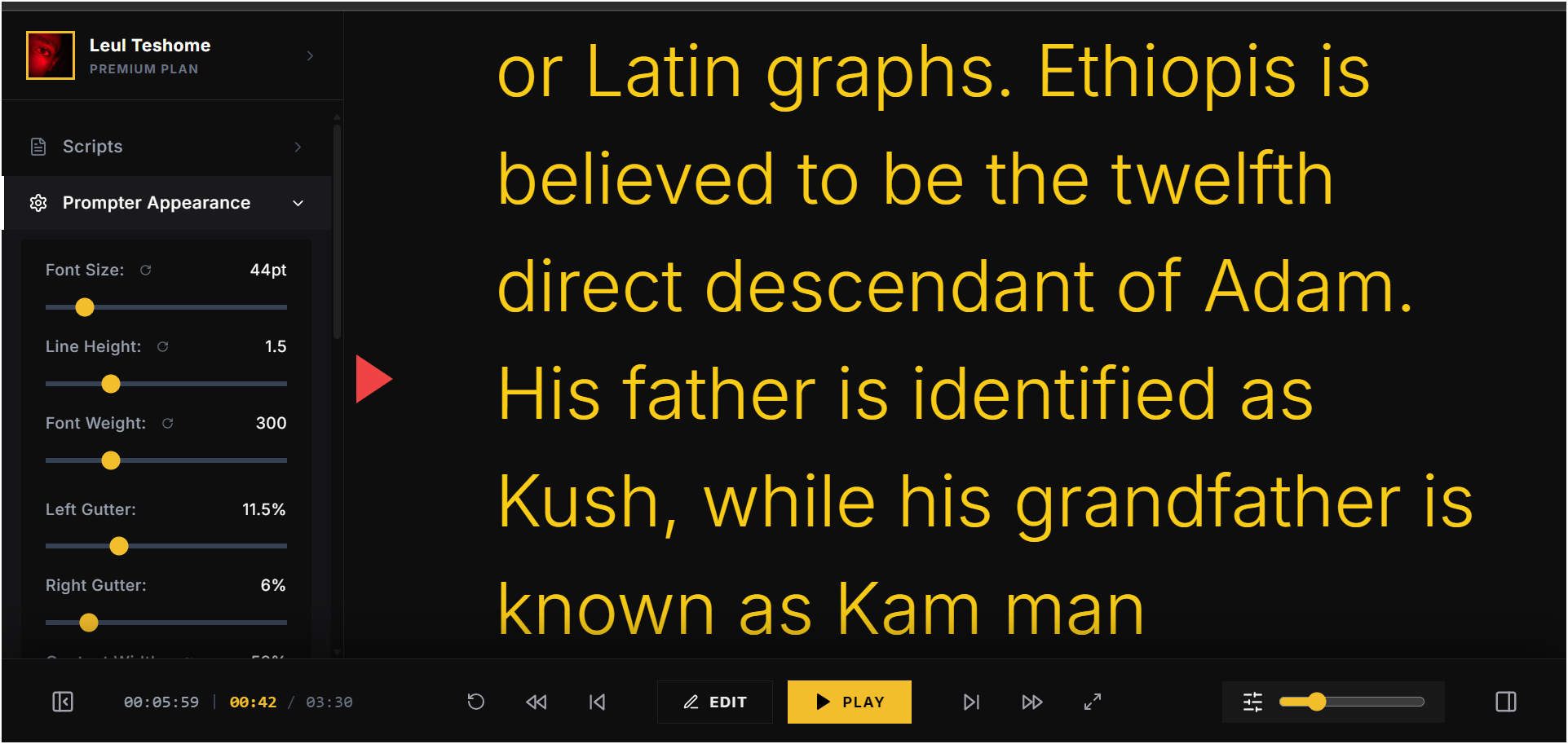
3. Advanced Appearance Control
To look truly natural, your eyes shouldn't be scanning back and forth. The script needs to be optimized for your specific webcam distance and screen size. Here is how to configure the Appearance Settings for maximum impact:
4. Position Over Microsoft Teams
- Open your Microsoft Teams meeting.
- Place the Online Prompter window directly below your webcam.
- The goal is to keep the scrolling text as close to the camera lens as possible.
Hardware & Remote Control
Fumbling with your mouse or keyboard while presenting looks unprofessional. Online Prompter supports a wide range of hardware to let you control the scroll speed invisibly.
Supported Devices
- Presentation Clickers: Devices like the Logitech R400/R800 or Kensington Presenter work out of the box. They typically send "Page Up/Down" signals, which Online Prompter recognizes as scroll commands.
- Elgato Stream Deck: If you are a power user, you can map Stream Deck buttons to our hotkeys (Space for Play/Pause, Up/Down for Speed). We also support foot pedals like the Elgato Stream Deck Pedal for hands-free operation.
How to Bind Custom Keys
You can customize exactly which keys control the teleprompter. This is useful if you have a specific remote or pedal that sends unusual key codes.
- Connect your device (Pedal, Remote, etc.) to your computer.
- Open the Settings menu in Online Prompter.
- Navigate to the "Controls" or "Key Bindings" tab.
- Click on an action (e.g., "Play / Pause" or "Scroll Down").
- Press the physical button on your device. The app will instantly learn and map that key.
Advanced Microsoft Teams Features for Presenters
Once you have your teleprompter set up, leverage these native Teams features to elevate your presentation.
PowerPoint Live
Instead of sharing your screen, use PowerPoint Live. This uploads your slide deck to Teams and gives you a private "Presenter View" that includes your notes, upcoming slides, and a chat window. While PowerPoint Live has a built-in notes feature, the text is often too small and positioned too far from the camera.
Pro Tip: Use PowerPoint Live to handle the slides, but use Online Prompter overlay for your script. This gives you the robustness of Teams' native slide control with the superior readability and positioning of a dedicated teleprompter.
Presenter Modes
Teams offers "Standout", "Side-by-side", and "Reporter" modes.We recommend the Reporter mode for keynotes. It places your video feed (with your shoulder/head) above your content, mimicking a news broadcast. This makes eye contact even more critical, as you are the focal point.
Hardware Recommendations
Software is only half the battle. Your physical setup plays a huge role in how natural you look.
Webcam Placement
The camera should be at eye level. If you are using a laptop, put it on a stack of books or a stand. If you are on a desktop, ensure your webcam is mounted on the specific monitor where you have placed the teleprompter window.
Lighting
Face a window if possible. If not, use a ring light placed directly behind your webcam. Avoid aggressive backlighting (windows behind you), which turns you into a silhouette.
Using an External Monitor with Teams
One of the best setups for professional presenters involves using Mac or Windows with dual monitors.
- Monitor 1 (With Webcam): This is your "Stage". Place the Teams window and your Online Prompter overlay here.
- Monitor 2: This is your "Control Center". Put your slack, email, or reference materials here.
When sharing your screen in Teams, be careful to only share "Window: PowerPoint" or "Screen 2" so that the audience does not see your teleprompter overlay on Monitor 1.
Advanced Dashboard Features
Most users stick to the basics, but Online Prompter is built for broadcast professionals. Here are three hidden features in the dashboard that will change how you present on Teams.
1. Smartphone Remote Control
Clicking your mouse or typing on your keyboard during a presentation is a dead giveaway. The sound is picked up by your microphone, and the physical vibration often shakes your webcam.
The Fix: Use our built-in Mobile Remote.
- Click the "Remote" icon in the dashboard sidebar.
- Scan the QR code with your iPhone or Android camera.
- Your phone instantly becomes a touch-controller for the teleprompter running on your computer.
You can now sit back in your chair, hands relaxed in your lap, and control the scroll speed, pause, or jump between segments using your phone screen. It uses a low-latency Realtime Websocket connection to ensure there is zero lag between your tap and the scroll action.
2. Speech Timer
Running overtime is the cardinal sin of meetings. In the bottom-left corner of the Online Prompter dashboard, you will find two critical timers:
- Elapsed Time: Shows exactly how long you have been speaking.
- Total Estimated Time: Automatically calculates how long your script should take based on your current word count and scroll speed.
Use the "Total Estimated Time" during rehearsal to trim your content. If you have a 5-minute slot but the dashboard says "07:30", you know you need to cut two minutes of text before the meeting starts.
3. Keyboard Interaction Mode
If you prefer keeping your hands on the keyboard, enable "Edit Mode" (press 'E') mid-presentation. This is useful during Q&A sessions. If someone asks a question you didn't anticipate, you can quickly type a few bullet points into the prompter while they are talking, then read them back smoothly as if you had the answer prepared all along.
Essential Shortcuts:
- Spacebar: Play / Pause
- R: Reset to Top
- Arrow Up/Down: Jump between script segments (paragraphs)
- F: Toggle Fullscreen Mode
Common Mistakes to Avoid
Speaking Naturally
The biggest risk with a teleprompter is sounding robotic. To fix this:
- Write for the ear, not the eye. Use contractions (don't, can't, won't).
- Add [PAUSE] or [SMILE] cues directly into your script.
- Vary your speed. Online Prompter allows you to adjust scroll speed with keyboard shortcuts or even your voice.
Forgetting to Blink
When staring at scrolling text, people tend to blink less, making them look intense or frightened. Make a conscious effort to blink naturally and look away from the camera for a split second during scene transitions to reset your gaze.
Frequently Asked Questions
Can other people on Teams see the teleprompter?
No. As long as you share a specific application window (like PowerPoint) or share a secondary screen, the teleprompter overlay on your main screen remains invisible to the audience. If you share your "Entire Screen" where the teleprompter is, they will see it.
Can I use this with a second monitor?
Absolutely. In fact, we recommend it. Move your Microsoft Teams window to your secondary monitor (the one with the webcam), and place the Online Prompter overlay directly on top of it. This leaves your primary laptop screen free for notes, Slack, or other reference materials.
Does it work with Zoom or Google Meet if I switch?
Yes. Online Prompter is platform-agnostic. Because it lives in your browser, you can use it with Zoom, Google Meet, Webex, or even just for recording videos with your camera app.
What if my internet disconnects?
Online Prompter creates a local instance in your browser. Once the page is loaded, it does not require an active internet connection to scroll the text. You can continue presenting even if your Wi-Fi drops (though your Teams call might freeze!).